Aescripts Lockdown v2.4.3 for DaVinci Resolve [Win/Mac]
This post was published 4 years ago. Download links are most likely obsolete. If that's the case, try asking the uploader to re-upload.
Requirement: DaVinci Resolve | File size: 66.4 MB
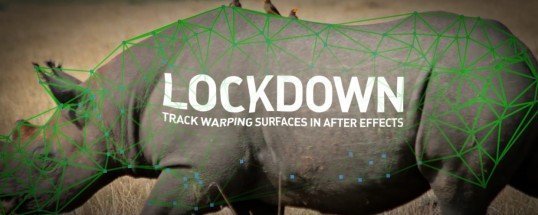
Lockdown is the original and best plug-in that allows you to track warping surfaces inside After Effects. Perfect for beauty retouching and other previously difficult cleanup jobs!
1) Pre-composing and setting up your footage/composition for tracking
The layer that Lockdown is applied to, and the Composition that layer is in, must have the same resolution and framerate for Lockdown to work. If you aren’t 100% sure how to set that up on your own, just press the Pre-compose button at the top of the plugin. The script will pre-compose your layer and set everything inside the pre-comp to all the correct settings, and you can work with Lockdown in there.
2) Optional Tracking Filter
This optional button applies effects that sometimes allow our tracker better identify textures. It's basically an edge-detect with a lot of contrast. You should be in 16 or 32-bit mode when using this filter. Running a denoiser on the original footage, and again on the final result also improves trackability. This is great for a shot where lighting is changing, because it brings out details in cracks and surfaces, and tends to ignore larger gradients. It’s great for faces, where there is tons of detail to be tracked in the pores of the skin. Without the filter, the tracking points may follow shadows and highlights sliding across the face, rather than the skin. With this filter, they will lock onto pores and skin details. Keep in mind this filter becomes far less effective with compressed video, like mp4.
3) Tracking
Click “Popout” to enter the Popout tracker. Layers are DISABLED in the first release of Lockdown 2.0.0, and will be enabled after the first round of testing. Control click to create points, control-click and drag to create a grid of points. Press “Track All” to track the points. Press “Auto Triangulate” to generate a mesh.
4) Improving on automatic tracking
- Track Adjustment: When a point drifts away from it’s target, click and drag it to put it back in place. Adjustment keyframes are an additional layer of animation that adds on top of your base track. It’s a very fast way to fix drifts.
What's New :
Added
- We now have a progress bar to show interpolation progress. This is the first step to optimizing it and making it faster.
Changed
- Increased maximum point radius to 60 for high res footage.
- We now render interpolated points as empty circles instead of solid so it's easier to evaluate quality.
- For future proofing, we've removed the dropdown menu to change interpolation within the After Effects window, and it will only exist in the poppet.
- Removed Enter Hotkey.
Fixed
- Fixed an issue where the licensing window in Resolve may prevent access to things behind it.
- Fixed a crash that may happen if Lockdown is rendering from multiple applications. For example, Ae, Resolve, and Premiere can all render Lockdown at once. This fix should solve an "unhandled exception" crash.
Homepage
Visit my Blog for Unity & Unreal Engine Assets, GFX Plugins & More!!!
Quick check before we show the links
Helps us keep automated scrapers from hammering the filehosts.